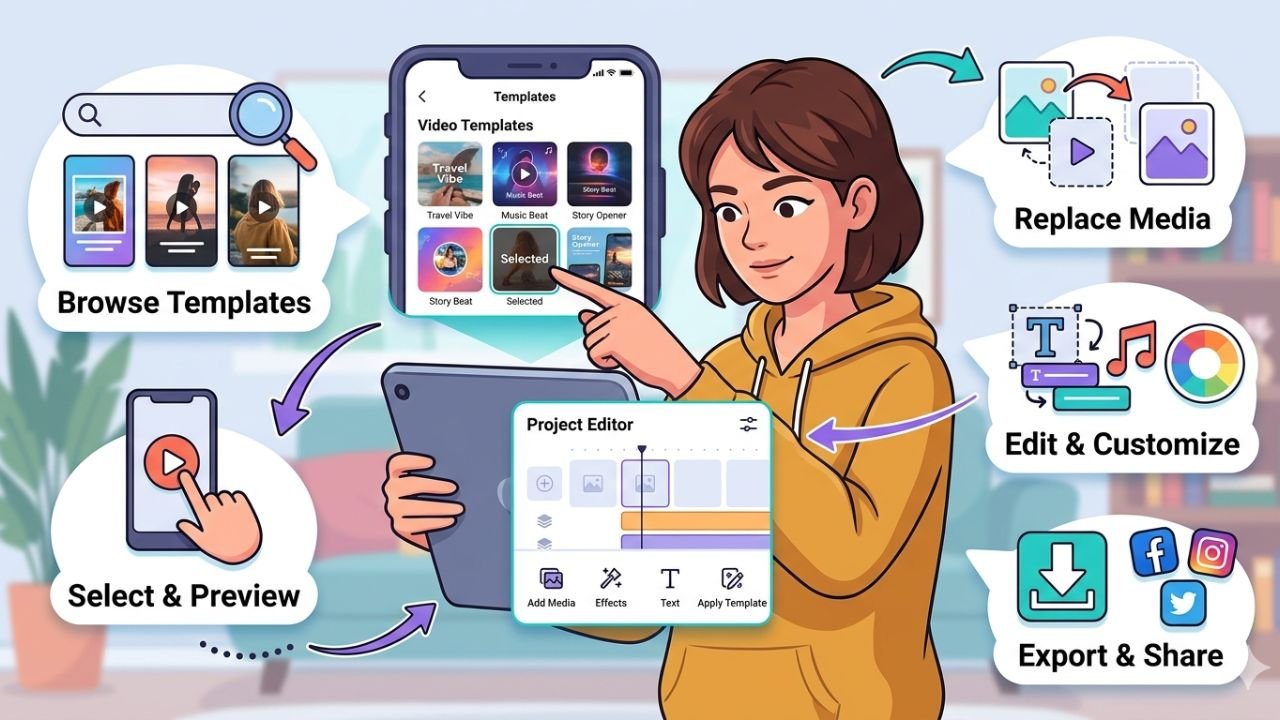
Creating videos for social media often takes longer than people expect. You must have the appropriate transitions, music, effects, timing and placement of text. The journey can be daunting to the novice. Even the more advanced creators are occasionally taking hours to edit a short video. CapCut templates can really help in this area. You do not have to create each of a video in its entirety, but you can take a pre-existing format and make it your own by adding new clips. Templates can save you some work, and in the process, you make some professional-looking content: if you are searching how to use template in capcut, you can understand what they are all about. Templates can make the whole process of making videos on TikTok, Instagram Reels, YouTube Shorts, or business promotions much easier.
What Is CapCut and Why Do Content Creators Use It?
CapCut is a video editing application developed by ByteDance, the company behind TikTok. If you’re new to the platform and want a complete beginner’s walkthrough, check out our guide on How to Use CapCut. The application has an extensive amount of editing-employed features that assist users in producing quality-based videos without complex video editing abilities. A factor that has made CapCut popular is its easy-to-use interface. All the features are simple to comprehend and that enables a beginner to start editing almost instantly. Meanwhile, the more skilled creators can access such tools as keyframe animations, color controls, background cutouts, and auto captions. The platform has been designed for mobile gadgets and desktop systems.
| CapCut Feature | Purpose |
| Templates | Quick video creation |
| Auto Captions | Generate subtitles automatically |
| Effects & Filters | Improve visual quality |
| Music Library | Add trending sounds |
| Text Animation | Create engaging captions |
| Background Removal | Remove unwanted backgrounds |
For many creators, CapCut acts as an all-in-one editing solution.
What are CapCut Templates and How Do They Work
CapCut templates are preset video templates, which already include transitions, effects, music synchings, and time adjustments. There is no manual work required as a user can simply upload his/her own pictures or videos. Consider a template to be a completed framework. The editing outline is already available. You just substitute the original media with your original content.
Short-sized video platforms have become a popular use of templates due to the need to move quickly. Fads are quick to change, and artists who put out their work faster tend to attain greater readership.
An author of a travel article, say, may come home after a weekend vacation with dozens of clips. They do not have to spend hours manually editing, and they are able to select a template of a given travel and upload their footage and within a few minutes, construct a video that may well look professional. One of the largest reasons why people want to learn how to use templates in CapCut is convenience.
Benefits of Using CapCut Templates for Faster Video Editing
Templates are popular for more than convenience. They solve several common content creation challenges.
1. Reduce Video Editing Time Without Sacrificing Quality
Video editing often involves repetitive tasks. You must synchronize transitions, connect music beats, coordinate times and place the text in the right places. Much of that is automatically taken care of by templates. Creators are no longer required to spend hours in the editing process; instead, they can concentrate on selecting suitable content. This benefit of saving time can drastically change the businesses who post several posts per week.
2. Create Trend-Based Content More Quickly
The trends of social media are dynamic. Currently, popular editing styles might fade off in a few weeks. Several CapCut templates are constructed on fashionable trends. This means that creators are able to contemplate popular formats without needing to learn all of their editing techniques themselves. This makes it easier to create relevant and updated content.
3. Keep Your Social Media Videos Consistent
Consistent branding helps audiences recognize your content. Using totally different styles in each video makes it harder to establish a bit of a recognizable personality. Templates enable the brands to have a similar appearance in a number of videos and the content within them can be altered. That continuity usually results in more recognition by audiences in the long-term.
4. Create Professional Videos Without Editing Experience
A video editor is not present in all businesses. Many social media managers, entrepreneurs, and marketing departments create content on their own. Templates enable non-editors to make a professional appearance video with minimal training requirements. This enables easier and larger-scale production of content.
How to Find and Use CapCut Templates
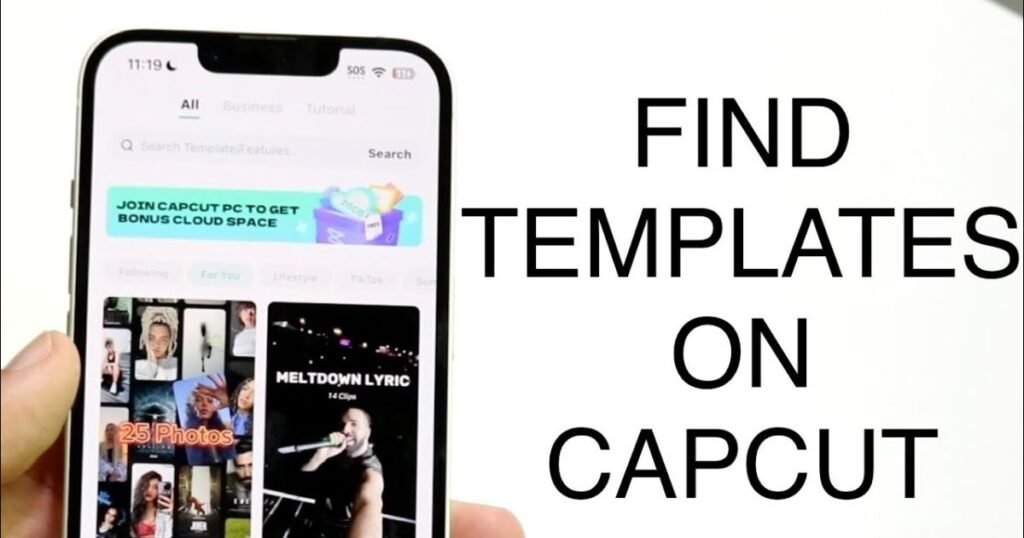
CapCut templates simplify video editing even more, particularly when one seeks a professional appearance without taking hours to edit their video. You do not have to design transitions, effects and timing but use a template that is already available at your disposal and populate it with your own content.
It is easy to learn and does not require any skills. Templates can be used to save time when making TikTok videos, Instagram Reels, travel videos, business advertisements, and others and keep things professional. As you become familiar with the fundamentals of the working process, it will be easier and more efficient to make interesting videos.
Step 1: Install and Launch the CapCut Application
Start by downloading and opening the CapCut app on your smartphone or tablet. The mobile version offers the easiest access to templates and regularly updates its collection with new trending designs.
Step 2: Browse the CapCut Templates Library
After entering the home screen, choose the tab “Templates” in the navigation bar. In this case, you can scroll through the trending, popular and category-based templates available to serve various content like travel, fashion, food, fitness, and business.
Step 3: Pick a Template That Matches Your Content
Take your time by previewing various templates and selecting one suitable for your video purpose. One should preview the editing style, music, quantity of needed clips as well as the general flow of the visuals before making their choice.
Step 4: Upload Photos and Videos to the Template
Click on Use template and insert the photos or video clips you desire to use. Note: CapCut is designed to automatically fill in your content into the template and synchronize it with the included transitions, effects and audio.
Step 5: Review, Export and Publish
After creating the video, go through it to make sure that everything is in place. Next, select the intensity of the export video and post it directly to TikTok, Instagram or even save the video to your device to use it later on.
How to Use Template in CapCut to Create More Engaging Videos
Many creators focus only on speed. Nevertheless, templates may be effective in enhancing quality with a strategic approach. CapCut will give you a template to work with. To make your videos look even more professional, you can also learn how to Add Transitions in CapCut, which helps create smoother scene changes and better viewer engagement. When you attempt to use the template, customize the content rather than go with all the default settings. Videos can be easily made more innovative and genuine with a few changes.
An example of this is a fitness coach who could utilize a trending transformation template. Rather than including text that is generic, they might include client milestones, workout successes, and inspirational comments. The editing framework is effective, whereas the final material seems to be one-of-a-kind. This strategy usually creates an improved response compared to duplicating one of the trends.
Best Practices for Getting Better Results with CapCut Templates
Templates work best when combined with thoughtful customization.
- Choose templates that match the mood of your content. Fast-paced templates work well for energetic videos, while slower transitions often suit storytelling content.
- When you can use high-quality footage. Good visuals may be improved using templates, but they cannot entirely make up for poor-quality clips.
- Customize text overlays personalized to represent your message and your audience. Captions of a generic nature seldom evoke a powerful interest.
- Experiment with different template styles and compare performance. It could turn out that a little editing style modification can result in much better results.
- When you have a brand account, use similar colors, fonts, and messages that appear in videos. Stability contributes to building brand recognition.
When Should Brands Use CapCut Templates?
Templates are particularly useful when speed and consistency matter.
Brands frequently use templates for:
- Product launches
- Flash sales
- Seasonal promotions
- Event announcements
- Customer testimonials
- User-generated content campaigns
Imagine a clothing brand introducing a new collection. The marketing team will be able to make a template out of product photos to create various videos within a new afternoon instead of having to make every single promotional video by hand. This enables companies to post greater material without necessarily adding high production costs.
Logo APK CapCut: Is It Safe and Worth Using?
Many users search for logo apk capcut when looking for additional features or unlocked tools. However, unofficial APK versions may create security risks and performance issues. Modified applications sometimes stop receiving updates, which can affect compatibility and reliability.
| Official App | Unofficial APK |
| Regular updates | Irregular updates |
| Better security | Potential security risks |
| Stable performance | Possible crashes |
| Official support | Limited support |
While the term logo apk capcut remains popular in search results, most creators achieve excellent outcomes using the official application.
When Custom Video Editing Is Better Than CapCut Templates
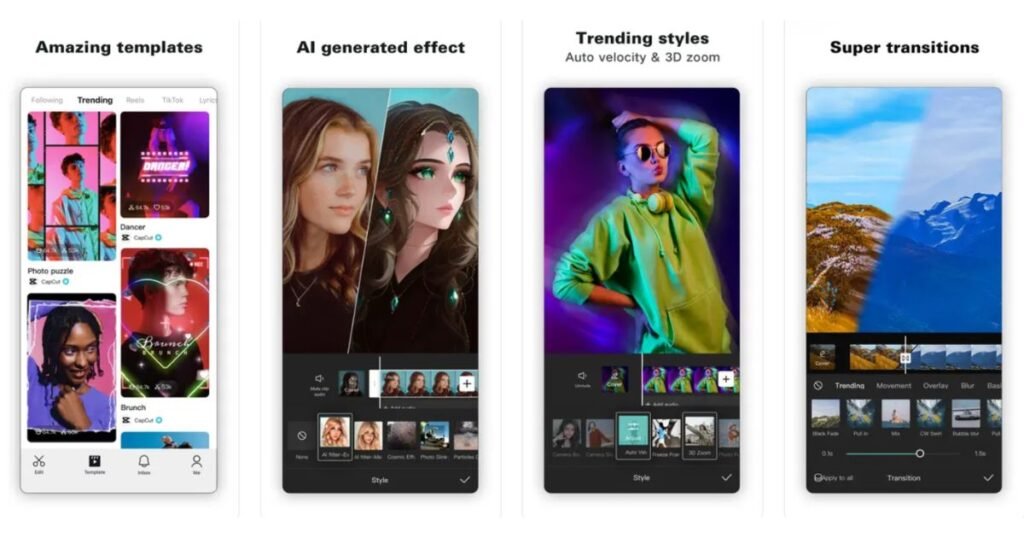
Templates are suitable in a variety of scenarios, but not all projects. Longer form content may demand a higher level of creative control. Manual editing is common in documentary video, in-depth tutorials, structured corporate presentations and complex storytelling projects. Templates adhere to a predefined format. Therefore, they can limit flexibility when a project requires highly customized pacing or unique visual storytelling. Creators should view templates as a tool rather than a complete replacement for editing skills.
Conclusion
Learning how to use template in capcut can dramatically simplify video creation. Templates save time on editing, aid uniformity, and enable both novices and experts in creating content that appears to be professional. Although templates cannot bring about creativity, they are a good foundation that gives creators a good foundation and allows them to concentrate on content instead of being preoccupied with technical editing. Investigating how to use template in CapCut can assist you in creating quality content with less effort, regardless of whether you are producing videos to be used by a social media persona, business marketing, or personal projects.
FAQs
Q1. Are CapCut templates free to use?
Many CapCut templates are available for free, although some premium features may require a subscription.
Q2. Can beginners use CapCut templates easily?
Yes, templates are designed to help beginners create videos without advanced editing knowledge.
Q3. Can I customize a CapCut template?
Yes, you can replace clips, edit text, change music, and adjust visual elements.
Q4. Is it safe to download logo apk capcut versions?
Official versions are generally safer because they receive regular updates and security improvements.
Q5. Can businesses use template in capcut for marketing?
Yes, many brands use templates for product promotions, announcements, and social media campaigns.
Q6. Do CapCut templates work for Instagram Reels?
Yes, templates work well for Instagram Reels, TikTok videos, YouTube Shorts, and Facebook Reels.
Q7. Do templates affect video quality?
No, video quality depends mainly on the original footage and export settings.