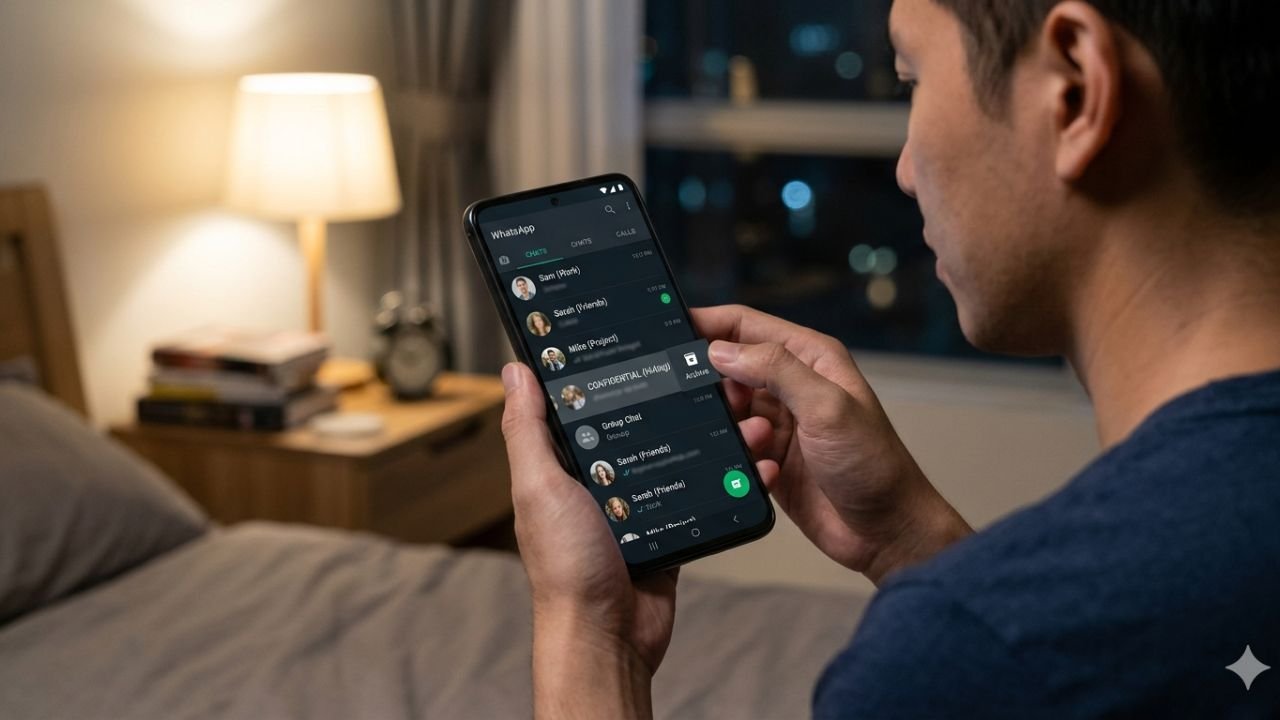
You’re in a meeting and someone picks up your phone to check the time. Your WhatsApp screen illuminates, and a message comes across that you would not prefer to make public. It’s an uncomfortable situation and a personally ubiquitous one. The great majority of persons either delete the message or panic. Yet more wit still to treat this wit. WhatsApp is an App with an inbuilt feature, Chat Lock, which informs you of how to hide WhatsApp chat without any message showing or using the archive folder.
Chat Lock moves your private conversations into a separate protected folder. Only you can open it using your fingerprint, Face ID, PIN, or a custom secret code. Even your notifications change no names, no previews, just a plain alert. This guide walks you through every device and every setting so your private chats stay exactly that: private.
WhatsApp Chat Lock: What It Does and Why It Works Better Than Archive
Most people don’t realise how easy it is to find archived chats. Anyone who scrolls to the bottom of your WhatsApp list can open the archived folder without any password. Chat Lock is a completely different level of privacy. It removes the conversation from your main chat list and places it inside a locked folder that only opens with authentication. The person messaging you has no idea you’ve locked the chat nothing changes on their end.
The difference between these two options is significant when you actually compare them side by side.
| Feature | Archive | Chat Lock |
| Hidden from main list | Yes | Yes |
| Requires authentication | No | Yes |
| Hides notification details | No | Yes |
| Secret code option | No | Yes |
| Folder can be made invisible | No | Yes |
Chat Lock wins on every privacy point that actually matters.
Which Users Benefit Most From Chat Lock?
Although Chat Lock can help anyone protect private conversations, it is especially useful for:
- Professionals discussing confidential work matters
- Business owners communicating with clients
- Students sharing phones with family members
- Parents who occasionally hand their phones to children
- People who store sensitive personal information in chats
For these users, Chat Lock provides a stronger privacy layer than simply archiving conversations.
Why WhatsApp Introduced Chat Lock Instead of Expanding Archive
Many users assume that archived chats and hidden chats are the same thing, but WhatsApp created Chat Lock to solve a completely different problem. Archive was designed for organization, whereas Chat Lock was designed for privacy. Archived chats remain accessible to anyone using your phone, while Chat Lock places conversations behind biometric authentication or a secret code. This distinction explains why WhatsApp continues to invest in Chat Lock features instead of simply enhancing the archive folder.
Can You Hide WhatsApp Chat on Android, iPhone, Web, and Windows
Yes, and this is one of WhatsApp’s most underused features across all platforms. Chat Lock supports both Android and iPhone, as well as WhatsApp Web and the Windows desktop application. Each device has slightly different steps, yet the overall experience remains the same. You close a chat and it will not appear in your main list and will be unlocked only by yourself with proper authentication.
The only current exception is Mac. WhatsApp has not rolled out Chat Lock to the Mac app yet. You can read and reply to locked chats on Mac only after unlocking them on your phone first. Every other major platform supports the full feature set.
How to Hide WhatsApp Chat on Android: Step by Step
Android offers the most complete Chat Lock experience of any platform. You can lock individual chats, set a dedicated secret code, and even make the entire Locked Chats folder invisible to anyone who picks up your phone. The whole setup takes under two minutes.
Lock and Unlock Any Chat on Android
Press and hold the chat you want to hide from your main list. Tap the three-dot menu that appears and select Lock Chat. Confirm your identity using your fingerprint or PIN. The chat disappears from your list immediately and moves to the Locked Chats folder. To reverse this, open the Locked Chats folder, press and hold the same chat, and select Unlock Chat.
Set Up a Secret Code for Extra Protection
A secret code adds a second barrier on top of your biometric authentication. It works like a password specifically for your Locked Chats folder and also lets you hide the folder entirely.
- Open the Locked Chats folder from your chat list
- Tap More options → Chat lock settings → Secret code
- Enter your chosen code, tap Next, and confirm it
You can turn off the secret code anytime from the same settings menu.
Make the Locked Chats Folder Completely Invisible
This is the environment that pushes privacy to the outer level. Click into the Locked Chats folder, then use the Settings and turn on Hide Locked Chats. The folder is removed entirely from your chat list. Then it can only be accessed by typing your secret code directly in the WhatsApp Search bar. No one who views your phone is going to notice it or tell that it is there.
Reset When You Forget Your Secret Code
Go to Settings → Privacy → Chat Lock → Unlock and clear locked chats. This removes all chats from the locked folder. They are only recoverable if your last WhatsApp backup was made before this reset, so back up regularly if these conversations matter to you.
How to Hide WhatsApp Chats on iPhone Using Chat Lock
The iPhone process is nearly identical to Android. The main difference is in gestures iOS uses swipe actions rather than long-press menus. The privacy outcome is exactly the same. A realistic example of where this helps: someone managing confidential work conversations on a shared family iPhone can lock those chats so no family member accidentally opens them.
Lock and Unlock a Chat on iPhone
Swipe left on the chat you want to hide, or long-press it. Tap More → Lock Chat. Authenticate with Face ID, Touch ID, or your passcode. The chat moves out of your main list instantly. To unlock it, repeat the same steps inside the Locked Chats folder and select Unlock Chat.
Create a Secret Code on iPhone
Open the Locked Chats folder and tap Settings → Secret code. Create your code and confirm it. This works identically to Android; your code hides the folder and serves as an alternative way to access it through the Search bar.
Access the Locked Chats Folder on iPhone
Swipe down in the Chats tab to reveal the folder when it’s visible. If you’ve enabled the hide setting, type your secret code in the WhatsApp Search bar. The folder appears as soon as you enter the correct code.
How to Hide Chats on WhatsApp Web: Desktop Privacy Made Easy
WhatsApp Web fully supports Chat Lock, but it depends on your phone for authentication. You cannot set up a secret code from the browser that setup must happen on your phone first. Once everything is configured on mobile, managing locked chats on web becomes straightforward.
Lock a Chat on WhatsApp Web
Right-click the chat you want to hide from your web chat list. Select Lock Chat from the menu. WhatsApp sends an authentication prompt to your connected phone. Approve it there, and the chat moves to the Locked Chats section on the web interface as well.
Open and Manage Locked Chats on Web
Click the Chat lock icon in the web interface to open the folder, or type your secret code in the Search bar if the folder is set to hidden. The folder visibility setting itself must be managed from your phone; you cannot toggle it from the browser version.
How to Hide WhatsApp Chats on Windows Desktop App
The Windows app functions almost exactly like WhatsApp Web when it comes to Chat Lock. Can you hide whatsapp chats? Yes, for that Right-click the conversation you want to lock and select Lock Chat from the menu that appears. Authentication goes through your phone. To access your hidden chats, open the Search bar and type your secret code. Any action that clears or resets locked chats must be completed from your primary phone; the Windows app doesn’t support that action independently.
WhatsApp Chat Lock on Mac? Current Limitations
The Mac desktop app of WhatsApp is yet to have Chat Lock. When you have locked conversations on your iPhone and open WhatsApp on your Mac, those messages are there, but can not read or respond to them, until you unlock them on your phone first. Until WhatsApp upgrades the Mac app to include this option, Mac users cannot start, continued, and hide chats via Chat Lock using the desktop.
How WhatsApp Notification Privacy Works With Locked Chats
When you hide a chat using Chat Lock, WhatsApp automatically removes all identifying details from notifications linked to that conversation. This matters more than most people realise a locked phone screen can still display full notification previews for incoming messages. Chat Lock prevents that from happening for any conversation you’ve protected.
Here is exactly what changes after you lock a chat:
- The sender’s name is fully removed from the notification banner
- No message text, emoji, image thumbnail, or voice note indicator appears
- The only visible alert reads: “WhatsApp: 1 new message”
- Tapping the notification will not open the locked conversation until you authenticate
- A secret code, if active, must be entered before any content becomes visible
This protection works independently of your phone’s general notification settings. Even if every other app on your phone shows full previews, locked WhatsApp chats always display the generic version.
Can Someone See Your Locked WhatsApp Chats?
No. Once a chat is locked, it moves into a protected folder that requires authentication before it becomes visible. If you enable the hidden folder option and create a secret code, other users cannot even see that the Locked Chats folder exists. However, incoming WhatsApp calls from the locked contact may still display the caller’s name.
How to Find Locked Chats on WhatsApp: All Scenarios Covered
People frequently lock chats and then struggle to find them, especially after hiding the folder. Here is a complete reference based on every possible setup.
| Your Situation | Steps to Access Locked Chats |
| Folder is visible | Scroll down in chat list → tap Locked Chats |
| Folder is hidden | WhatsApp Search bar → type your secret code |
| No secret code set | Scroll down → tap Locked Chats → use biometric authentication |
| Switched to a new phone | Restore WhatsApp backup → set up biometrics → access normally |
| Forgot your secret code | Settings → Privacy → Chat Lock → Unlock and clear locked chats |
The most prevalent is when one hides the folder then forgets that they did it. When your Locked Chats folder is lost, just use the Search bar and type in your secret code and it will also appear.
Key Things to Know Before You Start Hiding WhatsApp Chats
Several minor details will help you to save your time, prevent frustration, or unintended loss of data, before the time when you will start using Chat Lock on a regular basis.
- Messages in locked chats move through phones: Moving to another device and restoring the WhatsApp backup keep the locked chats in the Locked Chats folder. Biometric authentication on the new phone must be configured to gain access to them.
- Calls still come through normally: Locking a chat does not block incoming WhatsApp calls from that contact or group. The call rings through with the caller’s name visible. Chat Lock only applies to messages.
- Automatic media saving stops for locked chats: You can still save photos and videos manually inside a locked conversation. However, Media Visibility on Android and Save to Photos on iPhone do not apply automatically to locked chats
. - The other person never finds out: There is no notification, status change, or any signal sent to the other person when you lock a conversation. It is entirely invisible from their side.
- Clearing locked chats cannot be undone without a backup: Using “Unlock and clear locked chats” deletes all messages from the folder permanently. Recovery is only possible if your most recent WhatsApp backup was created before the reset.
Common Mistakes People Make When Using Chat Lock
Even though Chat Lock is easy to use, users often make a few mistakes that reduce its effectiveness:
| Mistake | Result |
| Forgetting secret code | Locked folder becomes difficult to access |
| Not backing up WhatsApp | Chats may be lost after reset |
| Assuming calls are hidden | Caller names can still appear |
| Using Archive instead of Chat Lock | Conversations remain accessible |
| Forgetting hidden folder setting | Users think chats disappeared |
Understanding these mistakes helps prevent confusion and accidental data loss.
Final Thoughts on How to Hide WhatsApp Chat the Right Way
Chat Lock has emerged as the most useful built-in security feature of WhatsApp to those users connected to the identity of privacy. In contrast to archived chats, it unites biometric authentication and notification protection, secret-code access, and hidden folders into one privacy-focused solution that allows keeping sensitive conversations beyond the view of their curious observers.
Chat Lock is an adventure of a clean, native experience supporting both Android, iPhone, WhatsApp Web, and Windows without the need to install a third-party application or workaround. Install a secret code, turn on the hidden folder setting, and your conversations in secret remain entirely invisible to others until you decide to view them. It requires less than two minutes to adjust and offers a trusted privacy cover, which the majority of WhatsApp users never exploit fully.
Related Articles: WhatsApp New Features 2026 | How to Off Blue Tick in WhatsApp