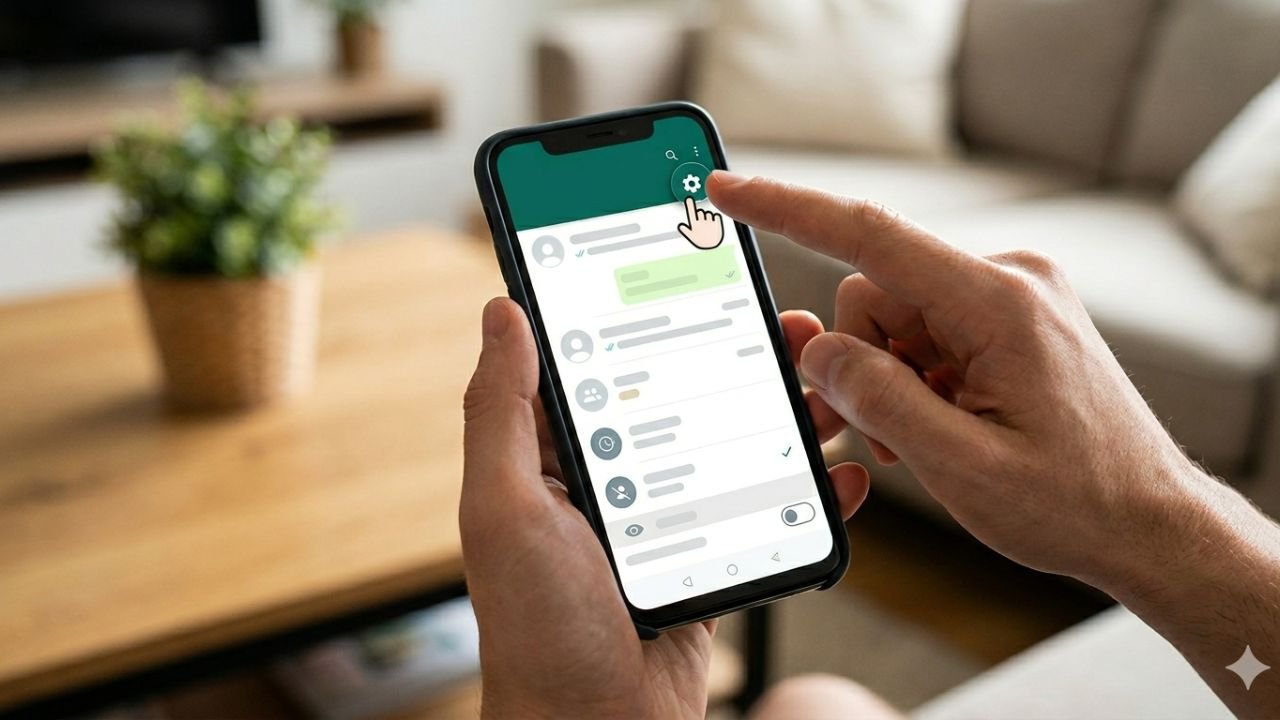
Many people install WhatsApp simply to stay connected with friends, family, colleagues, and clients. However, after using the app for some time, they realize that WhatsApp shares more activity information than they expected. A small “Last Seen” timestamp or an “Online” indicator may look harmless, yet it often leads to unnecessary questions. You are busy, and someone notices that you were active ten minutes ago and then suggests that he can reply instantly. You are caught online at late hours, and someone sees you online and starts inquiring about why you were up. The positive news is that, with WhatsApp, its users are provided with the ability to control more than at a previous stage. You have the choice of who is able to see what you are doing, who can see your profile information and the type of visibility you desire when utilizing the platform. If you have been searching for how to hide last seen in WhatsApp, this article covers every practical method.
On the journey, you will also know how not to appear online on WhatsApp and how to appear offline on WhatsApp without interfering with your interactions on a day-to-day basis.
Moreover, the same experience occurred to me as I had to balance between work notifications and close friends in the same account. There were days when I opened WhatsApp only to check an important office update. A few minutes later, friends would ask why I ignored their messages despite being online. That experience made me explore every privacy setting available inside the app.
How to Hide Last Seen in WhatsApp Using Built-In Privacy Settings
The safest and most effective solution comes directly from WhatsApp itself. Throughout the years, the company has increased its privacy controls and simplified them for use. Assuming you want to know how to hide last seen in WhatsApp, the first thing that you need to see is the privacy menu that is built in. These settings do not expire like temporary tricks, unless you manually change them.
Finding the Privacy Controls
Android and iPhone users should be able to enjoy the same privacy. The design might be just a bit varied, yet the choices are nearly the same. Open WhatsApp and go to Settings. Under Settings, tap on Privacy. You can find the following types of controls here: activity status, visibility of profile photos, read receipts, and many others. Numerous individuals do not consider this menu. As such, they end up exchanging information that they had never intended to reveal.
Choosing the Right Last Seen Option
Inside the Privacy menu, you will find a section called “Last Seen and Online.” Tapping this option reveals several visibility choices.
| Privacy Option | Who Can See Your Last Seen |
| Everyone | Any WhatsApp user |
| My Contacts | Saved contacts only |
| My Contacts Except | Selected contacts excluded |
| Nobody | Completely hidden |
Most privacy-conscious users prefer “Nobody” because it offers the highest level of control. After choosing this feature, WhatsApp will not show your activity date to other users. Meanwhile, you might not be able to view the details of some activities of other users as WhatsApp equally surrounds itself with privacy rules.
What Happens After Hiding Last Seen?
Many users worry that hiding Last Seen will affect messaging. Fortunately, that doesn’t happen.
You can still:
- Send messages normally
- Receive messages instantly
- Join group chats
- Make voice and video calls
- Share media files
The only change is that others cannot monitor when you last used the application. That small adjustment often creates a much more comfortable messaging experience.
How to Not Show Online on WhatsApp Without Blocking Anyone
Many users are not really interested in Last Seen. They are really interested in the Online status that one can see when using the app. And when you have looked at how not to appear online on WhatsApp, it is likely that you are looking at how not to make yourself visible to everyone. The positive aspect is that now it is possible to change Online visibility to a greater extent than before in WhatsApp.
Why Online Status Creates Pressure
Online indicators seem simple, yet they often create unrealistic expectations. There is an assumption on the part of people that when you are online, you should be free to talk to them. It is not usually the case in real life.
You may be checking a work notification. You might be downloading a significant paper. It might be even reading a message and not even have time to reply. Although that is the case, most contacts take an Online status as an invitation to chat now.
Adjusting Online Visibility
WhatsApp introduced a feature that links Online status to your Last Seen preferences.
To enable it:
- Open WhatsApp Settings.
- Tap Privacy.
- Select Last Seen and Online.
- Choose “Same as Last Seen.”
Once enabled, anyone restricted from viewing your Last Seen will also lose access to your Online status. This simple setting answers one of the most common privacy questions users ask.
Real-World Example
A digital marketing consultant I worked with handled more than fifty client conversations every week. Clients were always expecting to get immediate responses every time they came across him online. By adjusting his Online visibility, it was now possible to see messages at opportune moments without raising expectations. He was more productive as he was no longer obligated to follow up on a query immediately. Minimal privacy modifications can result in remarkably big effects on everyday communication.
How to Hide Online in WhatsApp While Keeping Conversations Active?
Other users believe that concealing their online presence in WhatsApp is the ability to remain invisible or not to be connected with WhatsApp at all. Luckily, it is not so. And if you would like to know how to go incognito in WhatsApp, you can proceed with the use of the application as usual. It is not being to prevent communication. The idea is to determine who can access your information about activities.
Privacy Does Not Mean Isolation
Many people hesitate to change privacy settings because they worry about appearing unfriendly. In reality, privacy settings simply give you more control over your personal time.
You remain available for:
- Personal conversations
- Work discussions
- Group communication
- Voice calls
- Video calls
The only difference is that your activity becomes less visible.
Additional Settings That Improve Privacy
Last Seen and Online visibility are only part of the picture. WhatsApp offers several other privacy tools that work together.
Consider reviewing these settings as well:
| Privacy Feature | Purpose |
| Profile Photo Visibility | Control who sees your picture |
| About Information | Restrict profile details |
| Status Updates | Select viewers manually |
| Read Receipts | Hide blue ticks |
| Two-Step Verification | Improve account security |
Combining these features creates a much stronger privacy setup.
Creating a Balanced Privacy Setup
Some users hide everything. Others prefer a balanced approach.
A practical configuration might look like this:
- Last Seen: Nobody
- Online Status: Same as Last Seen
- Profile Photo: My Contacts
- About: My Contacts
- Status: Selected Contacts
This setup protects privacy while still allowing normal interaction with trusted people.
Method 1: Adjust Privacy Settings to Hide Your WhatsApp Online Status on Android and iPhone
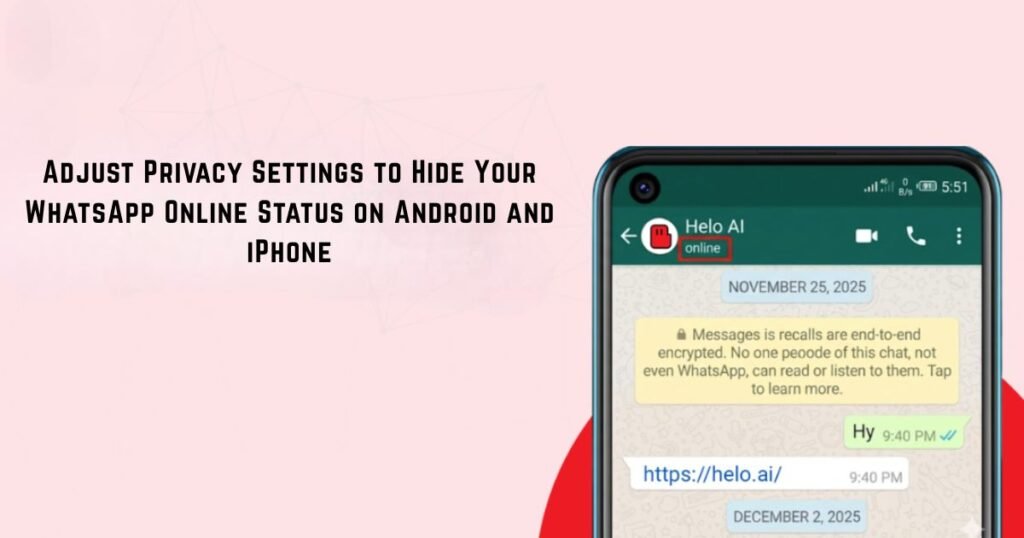
The ability of many WhatsApp users to have their activity privacy is one of the factors that makes them not indicate to everybody when they are online. Luckily, WhatsApp offers privacy settings, which allow you to control whom to see your last seen and online status. It is the simplest and safest way to acquire a greater degree of privacy as it will cooperate both with iPhones and Android. The following settings can be used so that you can know how to hide your online status in WhatsApp without interrupting with the WhatsApp chats, calls or message.
Step 1: Launch WhatsApp and Open the Menu
Open WhatsApp on your smartphone and use the three dots icon on the right-hand and upper side of the screen, and search. Upon tapping this menu, you will find some options to deal with your account and application settings. Here, all other privacy-specific controls are called WhatsApp.
Step 2: Access the Settings Section
Choose the alternative in the settings menu. It is also where you will see all the settings that will allow you to tweak WhatsApp settings to your personal preferences such as notifications, storage settings, privacy and preferences. Once you visit settings, you can also indulge in the privacy settings, which operate your presence on the Internet.
Step 3: Open Your Account Settings
Inside the Settings menu, tap on Account. Privacy, Security, Two-Step Verification, Change Number, Request Account Information and Delete Account are some of the most important features in this section. As WhatsApp puts all controls related to your account here, you will find the options that will allow you to manage your activity status.
Step 4: Navigate to the Privacy Menu
Select the Privacy option from the Account page. In this section, you can be in charge of who can see your profile image, updates, read receipts, Last Seen, and online activity. These settings are not paid much attention to by most users despite being provided with potent privacy options, which can greatly enhance the experience of the messaging.
Step 5: Open the Last Seen and Online Settings
In the Privacy menu, tap on Last Seen and Online. WhatsApp will show a few visibility options whereby you can choose who is able to view your activity information. This part provides you with a personal choice on the extent of information that should be used by other users on your usage of WhatsApp.
Step 6: Choose Your Preferred Visibility Option
A pop-up window will appear with options such as Everyone, My Contacts, My Contacts Except, and Nobody. Select the option that best matches your privacy preference. If you want maximum privacy, choose Nobody for Last Seen and set Online Status to Same as Last Seen. This combination prevents other users from tracking your activity.
Step 7: Save Your Privacy Preferences
WhatsApp will automatically save the changes once you have decided on your choice. To verify that the information on your status as Last Seen is still visible on the device used by a trusted person, you may request that he or she check. The next time you want to make your activity visible once again, just go to these settings and choose which visibility option to make it either My Contacts or another option of your choice.
Method 2: Use Airplane Mode to Keep Your WhatsApp Activity Private
Sometimes you may want to read or reply to messages without immediately showing your online activity to others. Although WhatsApp’s privacy settings will provide long-term solutions, Airplane Mode will also come in handy in cases where you need to have a temporary and fast solution to the visibility. The process is effective because it considers putting your phone offline prior to clicking on the app.
Lots of users choose this method in case they need to look at some messages in silence at a meeting, at school, or at work. It is not a long-lasting privacy option, but it could assist in using WhatsApp a bit more secretly in some cases.
How the Airplane Mode Method Works?
When you are in airplane mode, your phone does not connect to the mobile data and Wi-Fi networks. Consequently, WhatsApp is unable to instantly update your online, typing or activity status as you scroll through messages within the app.
Step 1: Update WhatsApp to the Latest Version
This method will ensure to use the latest version of WhatsApp before attempting. New releases tend to be less buggy and have features related to privacy working as intended. You will be able to check updates either in Google Play Store or apple App Store. Updating the application is done to minimize the likelihood of mistakes when using it.
Step 2: Enable Airplane Mode on Your Device
Your phone has got Airplane Mode that you need to turn on in the settings or quick settings. This will instantly cut your gadget off the internet and mobile network services. After turning on Airplane Mode, make sure that Wi-Fi and mobile data are turned off. This is necessary since WhatsApp should be offline at all times in the process.
Step 3: Open WhatsApp and Read or Reply to Messages
You can now start WhatsApp with your phone in Airplane Mode. You will be able to open chats, read incoming messages and even type a reply to contacts without updating your activity status in real time. Also type new messages to friends, family members or work contacts any time you want to. As the app will be offline, these actions will remain on your device in the meantime.
Step 4: Close WhatsApp Completely
After finishing your chatting, uninstall WhatsApp, and move it out of the Recent Apps list. It can be proposed to close down the app altogether but minimizing its size might not be sufficient. It will also assist in making sure that WhatsApp will not automatically reconnect and reopen your activity information when connected again.
Step 5: Disable Airplane Mode and Reconnect
Switch off Airplane Mode and regain your internet connection. When you connect again to the network, WhatsApp will relay the messages that you had typed when initially offline. The messages will be sent to your contacts, but they may not have known your online or typing indicators at the time you were on Airplane Mode.
Method 3: Using WhatsApp GB to Hide Last Seen and Online Activity
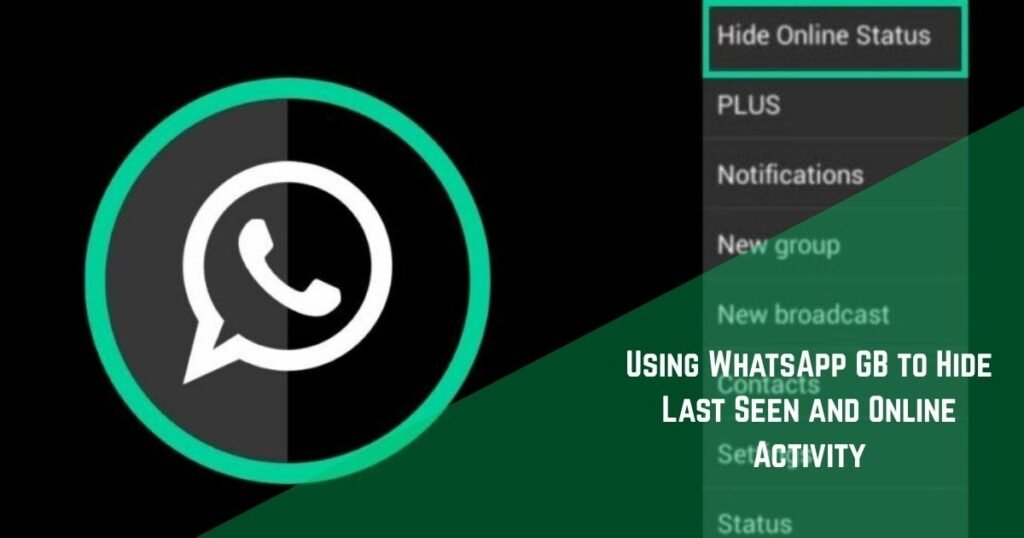
WhatsApp GB is preferred by some users due to additional features of customization and privacy not provided in the official WhatsApp application. The possibility to hide your online status and Last Seen activity as well as all your web contacts get into the list of the most popular features. Although this is even less private, it can be implemented only with the modified version of WhatsApp.
To make sure that no other person can trace your activity, in case you already use WhatsApp GB but need to keep your privacy intact, you can use its privacy settings built-in by undertaking the following steps.
Step 1: Install and Set Up WhatsApp GB
You should remove the official WhatsApp application in your phone before using WhatsApp GB. Next, get yourself WhatsApp GB, and complete the account creation process, adding in your cell phone number.
Step 2: Launch WhatsApp GB on Your Device
After fully installing and setting up, open WhatsApp GB on your smartphone. You must ensure that your account is currently operational and all is loaded properly, before you make any changes to any privacy settings.
Step 3: Access the Main Menu Settings
Tap the three-dot menu button at the bottom-right of the screen. This menu contains various options to customize and keep your privacy, unique to WhatsApp GB.
Step 4: Locate the Hide Online Status Feature
Inside the settings menu, look for the privacy section and find the option labeled “Hide Online Status.” This feature is specifically designed to prevent contacts from seeing when you are active on the app.
Step 5: Enable the Privacy Option
Turn on the Hide Online Status feature. WhatsApp GB will prevent displaying your activity online to contacts once it is activated. Meanwhile, your Last Seen data will be concealed as well, which will give a tight-knit of privacy one more level.
When It Comes to Hide Last Seen and Online
Many users misunderstand how WhatsApp activity indicators work. They often assume that Last Seen, Online, Typing, and Read Receipts all provide the same information. In reality, each indicator tells a different story.
Understanding Activity Indicators
- Last Seen tells users when you previously used WhatsApp.
- Online status shows that the application is currently active.
- Typing appears when you actively write a message.
- Recording appears when you create a voice note.
Because these indicators serve different purposes, changing one setting may not affect the others.
Why You Cannot Always See Someone’s Last Seen
Users frequently assume they have been blocked when activity information disappears. In many cases, that assumption is incorrect.
Several factors can prevent you from seeing another person’s activity details.
| Possible Reason | Explanation |
| Privacy Settings | User restricted visibility |
| Contact Restrictions | Access limited manually |
| Mutual Privacy Rules | Shared visibility disabled |
| Account Blocking | Access removed completely |
Therefore, missing activity information does not automatically indicate a problem.
Common Privacy Mistakes Users Make
Even after changing settings, some users accidentally reveal activity information. One common mistake involves changing Last Seen while leaving Online visibility unchanged. Another mistake involves ignoring Read Receipts. Even if activity indicators disappear, blue ticks may still reveal message-reading behavior. Keeping all privacy settings aligned produces better results.
Extra Privacy Settings Worth Reviewing
Many users stop after hiding their Last Seen status. However, WhatsApp includes several other privacy tools that deserve attention. A few minutes spent reviewing these settings can significantly improve your overall experience.
1. Read Receipts
Read Receipts control blue tick visibility. Turning them off prevents other users from knowing exactly when you read their messages. At the same time, you lose visibility into their read receipts as well.
2. Status Privacy
Status updates often contain personal photos, travel updates, and daily moments. Instead of sharing them with everyone, you can create a custom audience and choose exactly who can view them.
3. Two-Step Verification
Privacy involves more than hiding activity indicators. Protecting account access matters just as much. Enabling Two-Step Verification adds another layer of security and reduces the risk of unauthorized access.
4. Profile Information Controls
Many people overlook profile settings entirely. Restricting profile photos, About information, and status visibility helps prevent unnecessary exposure while keeping your account professional and organized.
Practical Tips for Using WhatsApp Without Feeling Watched
Privacy settings become most useful when combined with healthy communication habits. If someone expects an immediate response every time you appear online, hiding activity information may help reduce that pressure. At the same time, clear communication often solves many misunderstandings.
Personally, I found that limiting activity visibility made WhatsApp feel less stressful. I could review messages when convenient rather than feeling obligated to respond instantly. Many users report similar experiences. Once activity indicators disappear, conversations often become more relaxed and natural.
Conclusion
Learning how to hide last seen in WhatsApp is not just about hiding a timestamp. It is about creating healthier communication boundaries and taking control of your digital privacy. Whether you use the official privacy settings, rely on Airplane Mode for occasional discretion, or explore alternative options, the goal remains the same: use WhatsApp on your own terms.
If your objective is how to not show online on whatsapp or how to hide online in whatsapp, the built-in privacy controls provide the safest and most practical solution. Spend a few minutes reviewing your settings, choose the visibility level that matches your comfort, and enjoy a more private messaging experience without disrupting your conversations.
Frequently Asked Questions
Q1. Can I completely hide my Last Seen from everyone?
Yes. Select “Nobody” under the Last Seen privacy setting and WhatsApp will stop displaying your activity timestamp.
Q2. Can I use WhatsApp normally after hiding my Last Seen?
Yes. Messages, calls, media sharing, and group chats continue working exactly as before.
Q3. Does hiding Last Seen also hide Online status?
Not automatically. You must separately choose “Same as Last Seen” in the Online visibility section.
Q4. Why can I not see someone else’s Last Seen anymore?
They may have changed their privacy settings, restricted access, or blocked your account.
Q5. Is Airplane Mode still effective for reading messages privately?
It can help temporarily, although WhatsApp privacy settings remain more reliable for long-term use.
Q6. Is WhatsApp GB safe to use?
It offers additional features, but it also carries security and account-related risks because it is not officially supported.
Q7. Will turning off Read Receipts hide blue ticks?
Yes. Disabling Read Receipts prevents others from seeing when you read their messages.
Q8. What is the safest way to improve WhatsApp privacy?
Using the official WhatsApp privacy settings along with Two-Step Verification provides the best balance of privacy and security.